How We Built the Path to Hope Stream Control Room (Part 2: Audio and Latency)
2026-05-06 (Part 1 | Part 2 | Part 3)
A technical tour of managing audio and latency during the Path to Hope stream.
If you have not read how we kept Path to Hope online for 14 days, you should probably start there. This is the second in a three-part technical deep-dive series. Part 1 covers the cloud provider journey and our OBS setup. This post discusses how we managed audio and latency. Part 3 addresses the map overlays, the source rotator, the donation trackers, and custom code.
The Latency Budget: A Stack of Delays
Latency is the invisible enemy of every live stream. You cannot see it, but you feel it every time a streamer reacts to chat five seconds after a message was sent. For Path to Hope, latency was a stack of numbers, each one adding its own weight, not a single figure you could point to.
Speed of Light in Streaming and Gaming
The video feed from the truck had to travel across the United States before it ever reached a viewer. Light travels fast, but it is not instant. In a fiber optic cable, light moves at roughly two-thirds of the speed it would travel in a vacuum. That is still incredibly quick, about 124,000 miles per second, but distance adds up. A signal traveling from the west coast of the United States to the east coast covers roughly 3,000 miles of cable. At fiber speeds, that one-way trip takes about 24 milliseconds. Round trip, it is about 48 milliseconds. That is the absolute best-case scenario, with no routers, no switches, no congestion, and no detours. In the real world, the internet is a maze of routers, peering points, and overloaded links, so the actual round-trip time is higher. For example, the average round trip time from Amazon's us-west-2 region (Oregon) to us-east-1 (northern Virginia) is about 61 ms.
The truck streamed to whichever server was active at the time: first the original host in Miami, then Trjegul in Dallas, and finally the ingest relay at DigitalOcean in New York, which forwarded the stream to Bygul in the Midwest. Each hop added a little bit of delay, and there is no engineering trick that lets you outrun physics.
If you have ever played a first-person shooter online, you know what high latency feels like. You pull the trigger, but your opponent has already moved. You duck behind cover, but the server thinks you are still exposed. Game designers spend enormous effort balancing what happens locally on your machine against what the server authorizes. Let the client handle too much, and players with laggy connections get an unfair advantage or desynchronized results. Let the server handle too much, and every action feels sluggish because it has to complete a round trip before anything happens on screen.
RISK: Global Domination is designed differently. The game is almost entirely client-side. When you roll dice, capture a territory, or move troops, your client calculates the result and reports it to the server. The server trusts what it is told. This makes the game feel snappy no matter where you are in the world, but it also leaves the door wide open to hackers. A modified client can claim impossible dice rolls, ignore combat losses, or manipulate troop counts, and the server has no way to know it is being lied to.
You may have heard of efforts to create a "network update" for RISK where the server mediates every action in real time. If the server truly had to approve every dice roll, every troop movement, and every territory selection before anything appeared on screen, cheating would become dramatically harder. But the further you are from the server, the worse the latency gets. Players in Sydney or Mumbai would feel like they were playing through molasses when connecting to a server in the United States. This can be addressed by distributing servers around the world, but keeping those servers in sync with each other is an engineering challenge of its own. Another approach is to balance server communication with client-side resolution, letting the game client predict and animate actions immediately while the server validates them in the background. Finding the right balance between performance and integrity is one of the hardest problems in online gaming.
SRT Buffers
On top of the raw network latency, the SRT protocol itself requires a buffer. SRT's reliability mechanism works by retransmitting missed packets, and the protocol guidelines recommend setting the latency buffer to at least four times the round-trip time. On an unreliable cellular connection bouncing between towers and satellite dishes, we wanted enough headroom for retransmissions to actually succeed. We set the SRT latency to 3s, three full seconds, so that brief dropouts could recover without losing video or audio. This was a survival choice, not an optimization.
Then there was the hop between DigitalOcean in New York and Bygul in the Midwest. A DigitalOcean presence in the center of the US would have been ideal, but the available options were on the coasts. The round-trip time averaged about 20-30 ms, but residential internet being what it is, spikes to about 80 ms were not uncommon. We set this path to 400ms of latency. Add that to the 3s SRT buffer, and we had already baked in 3.4s of delay before a single frame reached our OBS instance. Before we even started compositing overlays or mixing audio, viewers were already watching the past.
Platform Latency
The delay did not stop at our server. Once OBS rendered the final stream and sent it out, Twitch and YouTube added their own buffering. We measured the best-case scenario for Twitch at about 4s and YouTube around 6s. Those are not numbers we could control. They are built into the platforms' ingest and delivery pipelines, and no amount of tweaking on our end would shrink them.
And then there was the wild card: the viewer's device. Streams playing on our Android TV run 5s to 10s behind our computers and phones. Our hardwired computers usually have the least lag. Same stream, same internet connection, different delays. It is the kind of variability that makes synchronized events nearly impossible.
Putting it all together: when someone typed a command in chat, it took at least 8s before they could expect to see a direct reaction on their screen. That is the 3.4s from the network and SRT buffer, plus the platform delay, plus whatever their local device added. We might have been able to shave a second or two off the 3.4s by reducing the SRT buffer, but that would have cost us reliability. On a mobile connection crossing the country, that trade-off was not worth it. And the Twitch and YouTube latencies? Those were completely out of our hands.
Audio Feeds: What the Streamers Hear
Latency is annoying for viewers. For streamers, it can be downright maddening, especially when it comes to audio. Nordic Noob and Roamin Nomad needed to hear the music, the TTS messages, and the donation alerts. What they absolutely did not need was to hear their own voices echoed back at them a second or two late. We hope that you have never experienced a delayed echo of everything you say for fourteen days straight, but trust us: it would drive anyone insane.
The Private Feed
To solve this, we split the audio into two completely separate paths. The main path contained everything: the truck audio, the phone audio, the music, the TTS, and the alerts. This was the feed that went to Twitch and YouTube.
The second path was a private feed containing only the music, the TTS, and the Twitch alerts, but not the streamers' own voices. We built this using Linux PipeWire, which functions like a set of virtual audio cables inside the operating system. PipeWire let us route specific audio sources to a separate output that never touched the public stream. It was elegant, lightweight, and exactly the kind of Linux utility that makes you want to nod approvingly at your monitor.
The relevant portion of our PipeWire configuration:
# $HOME/.config/pipewire/pipewire.conf.d/10-private-audio-sink.conf
context.objects = [
    {   factory = adapter
        args = {
            factory.name = support.null-audio-sink
            node.name = "null-sink"
            node.description = "null-sink"
            media.class = Audio/Sink
            object.linger = true
            audio.position = [ FL FR FC LFE RL RR ]
            monitor.channel-volumes = true
            monitor.passthrough = true
          }
    }
]

context.modules = [
    {   name = libpipewire-module-loopback
        args = {
            audio.channels = 2
            audio.position = [ FL FR ]
            capture.props = {
                media.class = Audio/Sink
                node.name = audio-out-sink
                node.description = audio-out-sink
            }
            playback.props = {
                node.description = audio-out-sink
                node.name = "audio-out-sink.output"
                node.passive = true
                target.object = "null-sink"
            }
        }
    }
]
We then set the "monitor device" in OBS to this private feed.
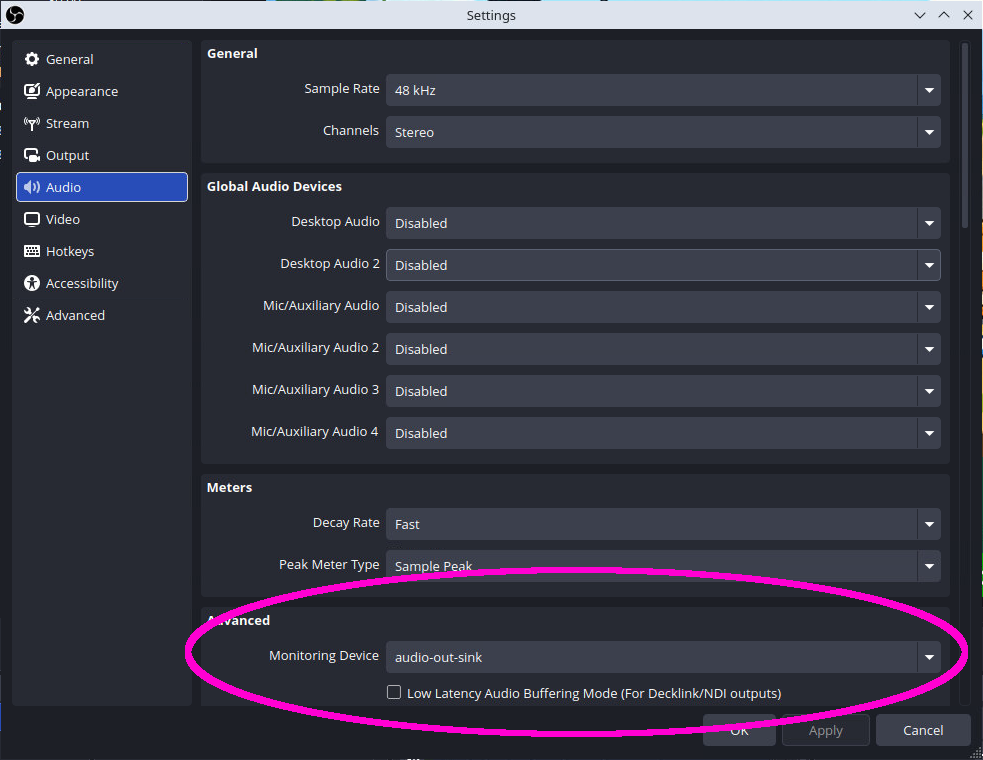
And finally we configured the Advanced Audio Properties in OBS to route the audio sources appropriately.
Monitor Only (mute output) means that the selected audio source only goes into the monitoring device (private feed), not to the stream or recording.
Monitor Off means that the selected audio source goes to the stream only, not the private feed. This was used for sources that either had a "Monitor Only" equivalent, or that the streamers did not want to hear through their own audio feed.
Monitor and Output means that the selected audio source goes to both the stream and the private feed at the same time. This was used for the 5-tone "dab" sound that played when the truck was going 69 mph, as further explained in Part 3.
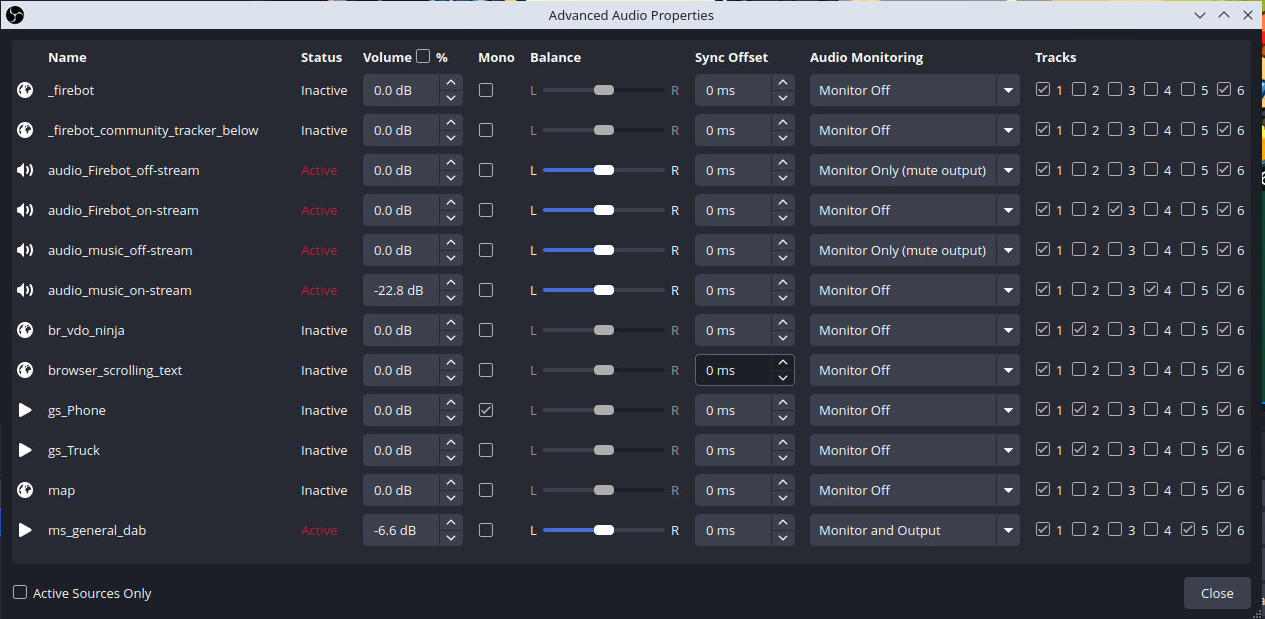
With this configuration, OBS was now sending the private feed only to the audio-out virtual device, not to Twitch, YouTube, or the recordings. To send this to our server, we once again employed ffmpeg, this time launched from a user systemd service. This reads the raw audio from PulseAudio (wired via pipewire-pulse) and re-encodes it using the more efficient and compatible Opus codec.
# $HOME/.config/systemd/user/ffmpeg-audio-out.service
[Unit]
Description=FFmpeg audio-out sink
After=network.target pipewire.service pipewire-pulse.service

[Service]
Type=simple
ExecStart=ffmpeg -f pulse -i audio-out-sink.monitor -ac 2 -ar 48000 -c:a libopus -b:a 192k -f mpegts 'srt://our-server.our-domain.com:8891?streamid=publish:audio-out:username:password'
Restart=always
RestartSec=5

[Install]
WantedBy=default.target
We did notice that latency and lag tended to accumulate within the audio source, so we did a once-daily restart of this process via cron. This would cause a brief blip in the private feed at 0700 UTC, strategically scheduled to occur when the streamers were sleeping.
# /etc/cron.d/audio-out-restart
0 7 * * * ubuntu XDG_RUNTIME_DIR=/run/user/$(id -u) DBUS_SESSION_BUS_ADDRESS=unix:path=${XDG_RUNTIME_DIR}/bus systemctl --user restart ffmpeg-audio-out.service
The streamers tapped into the private feed in three ways. Inside the truck, we added a "monitor only" audio source in the truck's OBS that listened to this private stream but didn't mix it back in to their outbound stream. For side quests and phone scenes, the streamers used the same phone app that handled their camera feed, which could also receive the private audio. We also had the streamers install an iOS app that can play SRT streams, although we don't believe they actually used it as the two prior methods were sufficient. In any case, they got a clean mix of everything they needed and nothing they did not.
Of course, this private feed needed its own reliability buffer. We baked in 1.5s of latency on the receiving end to keep the audio stable over the same volatile network paths. The absence or presence of music became a critical signal for the streamers to know when their connection had dropped.
Synchronizing TTS With the Stream
Text-to-speech messages were one of the most popular interactions on the stream. Behind the scenes, each TTS message ran through anti-profanity and anti-spam filters before being generated. That processing took a few seconds, which was already a noticeable gap between the chat command and the spoken result, but this was a critical protection to ensure the stream stayed age-appropriate and did not devolve into ROFLcopters or robotic beatboxing.
In the first stream, we sent the TTS message to both the public stream and the streamers' private feed at the same time. This sounded logical. It was not.
Because the private feed had 1.5s of latency, the streamers heard the TTS 1.5s after the public stream received it. But the video and audio feed from the truck was also delayed by the 3.5s of network and SRT buffering we discussed earlier. So from the viewer's perspective, the streamer did not appear to react to the TTS until 1.5s + 3.5s = 5s after the message started playing on stream.
The result was awkward. The streamer would keep talking, unaware that a TTS message was already playing for the viewers. By the time they heard it, they were already mid-sentence. They ended up talking over nearly every TTS message. One time they said something like "that's great" when a viewer was sharing sad news. Chat noticed. We noticed. The streamers noticed in the specific, soul-leaving-body way that only live mistakes can produce.
For the main event, we changed the strategy. Using Firebot, we configured each TTS message to be output twice: first to the streamers' private feed, and then 5s later to the public stream. This meant the streamers could stop talking right at the point that the viewers heard the message on the stream. The downside was that viewers had to wait an extra 5s on top of the existing platform latency. TTS felt slow, but it was synchronized. And in a fourteen-day stream, synchronized beats fast every single time.
This setup relied on the Firebot Deferred Action plugin, which we cover in more detail in Part 3.
Music and Dance Segments
The same delay problem applied to music during the dance segments. When the streamers danced, they were hearing the music through their private earpiece feed, which, as we established, resulted in video captured about 5s behind what the public stream was hearing. Imagine trying to dance to a beat that your body will not actually hear for another five seconds. It is not easy.
We synchronized the audio up to the video in post-production for this segment:
We realized this too late to fix it during the trip, but we have since updated the music player to insert the same kind of delay that we used for TTS. In future streams, the music and song artist/title information sent to the public stream will be delayed to match what the streamers are hearing in their ears. The beats will line up. The dancing itself is unlikely to improve, but at least it will be wrong on rhythm instead of wrong in two time zones.
Private Alerts and Admin TTS
Once we had a working private audio channel, we started finding other uses for it. We added private alerts that only the streamers could hear: notifications when ad breaks started and ended, follow alerts, raid alerts. These never appeared on the public stream, but they kept the streamers informed without cluttering the viewer experience.
We also created a "private TTS" command that allowed administrators, Mage and Brock, to send text-to-speech messages directly to the streamers without broadcasting them to viewers. We used this for operational reminders: "Stream reset in five minutes," "Please restart the truck OBS," "Your next guest is arriving in ten minutes." These messages were auto-deleted from Twitch chat immediately after being sent, so viewers never saw the command text.
Chat, being chat, noticed the deletions and joked that Mage or Brock were getting auto-modded by Twitch. In reality, we were just using private commands. The auto-mod was us.
The private feed was not without its own chaos. When the streamers used their phones without earpieces and the private audio was turned up too loud, it would leak out of the speaker and get picked up by their microphones. That created a gnarly echo on the public stream, a feedback loop where the private audio bled back into the public feed with a delay. During the Los Angeles walkaround, the problem got worse. The phone microphone was already picking up street noise, including someone nearby playing music. Combine that with the actual music on the public stream and the streamer's music feed echoing back through the microphone, and you had three competing songs playing at once. We ended up silencing the music entirely from the phone scene to stop the cacophony.
Noise, Filters, and Remote Control
The phone feed, while versatile, had one persistent problem: wind. When Nordic Noob was walking around Spokane or standing outside in the North Carolina breeze, the microphone would pick up an overwhelming amount of wind noise. It was loud enough to drown out conversation and unpleasant enough to make viewers reach for their volume sliders.
We added a noise filter to the phone input on the server-side OBS. The filter did its job admirably. Wind gusts became manageable. Background hiss disappeared. But like all aggressive noise suppression, it had a downside: faint audio would occasionally get cut out entirely. A quiet word, a distant laugh, a subtle sound effect, sometimes the filter decided those were noise and removed them. There is no free lunch in audio processing, and the price of cleaner audio was occasional overzealousness.
The bigger issue was control. Because the server-side OBS was running on Bygul in Mage's office and this feature was added on-the-fly, applying or adjusting the filter required logging into the machine and manually toggling it in the OBS interface. The streamers had no way to turn it on or off themselves. If the wind picked up while Mage was asleep, the streamers were stuck with whatever setting we had left it on.
For the next stream, we plan to add Firebot commands that let the streamers toggle the noise filter remotely. A simple chat command like !noisefilter on or !noisefilter off would trigger a WebSocket call to OBS and adjust the filter in real time. It is the kind of small quality-of-life improvement that makes a big difference when you are fourteen days into a road trip.
The Director Feed: A YAGNI Story
Early in the planning phase, we thought it would be useful to create a "director feed." The idea was that Brock or Mage could speak directly onto the streamers' private audio channel, offering real-time guidance or commentary without broadcasting it to viewers. It sounded professional. It sounded like something a real production crew would have.
We built it. We tested it. It worked. But then we never used it.
The problem was feedback direction. The director feed let us talk to the streamers, but it gave them no quick way to talk back. Any response they gave would go out over the public stream, subject to the full 8s (or more) of latency we discussed earlier. A conversation where one side has an eight-second delay is a broadcast with extra steps, not a conversation.
In practice, whenever we needed to actually talk to the streamers, we hopped into a Discord voice call. Discord was instant, bidirectional, and already installed on everyone's phones. The director feed sat unused, a monument to over-engineering, optimistic planning, and one of our more successful bouts of vibe-coding.
It was a classic YAGNI, "you ain't gonna need it." And we did not. The director feed will be removed from future streams, and the memory of it will serve as a gentle reminder that sometimes the simplest solution is a Discord call.
Next Up: Part 3
In Part 3, we will take a tour of the custom tools and scripts that ran alongside OBS to keep the stream running smoothly. We will cover the source rotator that kept the map and location text fresh, the donation trackers that pulled data from Firebot and displayed it on stream, a custom music player, and a monitoring setup that tracked OBS performance. If you thought this part was technical, just wait until you see what we had running behind the scenes.