How We Built the Path to Hope Stream Control Room (Part 1: Cloud Provider Journey and OBS Setup)
2026-05-06 (Part 1 | Part 2 | Part 3)
A technical tour of our cloud provider journey and OBS Studio setup for the Path to Hope stream.
If you have not read how we kept Path to Hope online for 14 days, you should probably start there. This post is the companion piece with more technical detail about the control room itself. Part 1 covers the cloud provider journey and our OBS setup. Part 2 discusses how we managed audio and latency. Part 3 covers the map overlays, the source rotator, the donation trackers, and custom code. Together, these turned a truck full of cameras and a server on the office floor into something that looked like a professional broadcast. Emphasis on looked like.
OBS Studio: Our Hosting Adventures
The primary OBS instance, the one that mixed music, overlays, alerts, and the incoming truck feed into the final stream, lived on four different cloud instances across two providers before the stream started, then switched hosts three times during the stream itself. Each had its own personality, its own quirks, and its own preferred method of making us question our life choices.
Before we get into the hosting story, we should say something important: OBS Studio is not designed to run in a virtual machine. It needs proper hardware support from both graphics and sound devices, and VMs might not provide either correctly. OBS relies on GPU acceleration for scene compositing and preview rendering, and it expects real audio devices for monitoring and output. A VM can fake these things well enough to boot the software, but "boots" and "runs production-grade" are oceans apart. When the normally supportive people on the OBS Discord say "don't do this," you should probably listen.
We came very close to giving up on hosting OBS in the cloud entirely before the stream ever started. The numbers were telling us a story we did not want to hear, and if it were not for a few stubborn late-night debugging sessions, Path to Hope might have pivoted to a less capable, more expensive commercial hosting alternative. To understand why, it helps to understand what OBS is actually doing under the hood.
A stream running at 30 frames per second means OBS has one-thirtieth of a second, about 33 milliseconds, to composite every source, apply every filter, render the frame, encode it, and send it on its way. Think of it like an assembly line that has to produce one finished frame every 33 milliseconds. If the line slows down and takes 34 milliseconds, we start dropping one frame every second. If it takes 40 milliseconds, viewers start to notice stuttering. If it takes longer than that, the stream starts to look like a slideshow. OBS reports this as "average time to render frame" in its stats panel, and during our testing, we watched that number like hawks. A healthy stream wants plenty of breathing room below that 33 ms ceiling. We did not have breathing room. We were gasping.
Even throwing more CPU at the problem did not help as much as we hoped. It turned out that OBS does something that is often necessary but still expensive: it processes every active source in a scene, including sources completely covered by other sources. That Browser Source tucked behind a full-screen video feed? Still processed. That image source hidden under an overlay? Still processed. So a busy scene can bring a CPU-only instance to its knees no matter how many cores you throw at it.
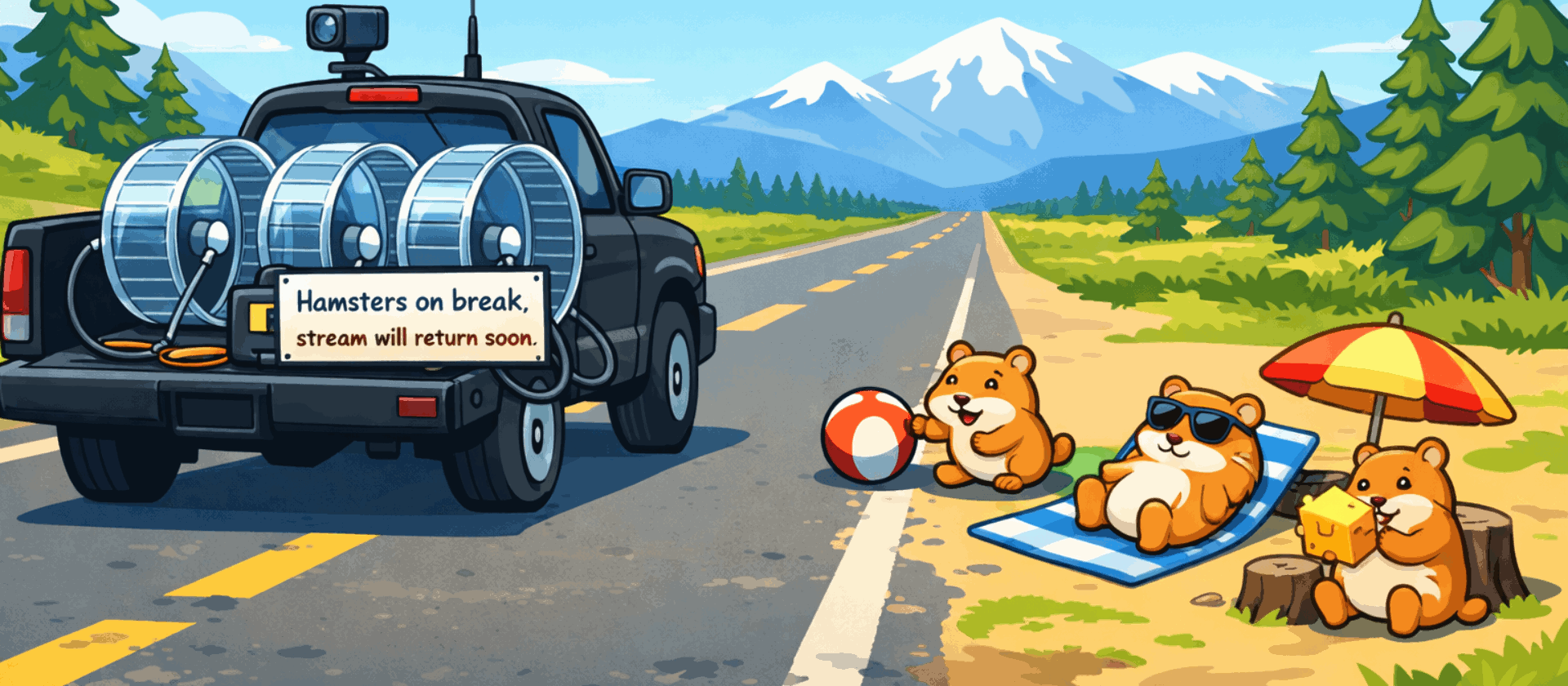
We discovered this the hard way with our beloved "hamsters on break" placeholder screen, the image that appeared when the truck feed went offline. That single image source was taking about 3 milliseconds to render, even when it was completely hidden. In a world where we had 33 milliseconds total and were already flirting with 30, those 3 milliseconds were an eternity. We actually considered telling Nordic Noob that the hamsters could not come on the trip. (In the end the hamsters stayed, but only because we found another way.)
Our Initial AWS Experiments
Our first attempt ran the OBS instance on a cloud virtual machine in Amazon Web Services (AWS). This system did not have a GPU, because GPUs are very, very expensive (for our budget, anyway). OBS can run without a GPU, but "can run" and "can run well" are very different things. Without proper graphics hardware, the CPU was responsible for compositing every scene, encoding every frame, and rendering every transition. Even before connecting the truck or starting a stream, frame generation time hovered around 20 ms, over halfway to the 33 ms threshold with nothing exciting happening.
We started by benchmarking the CPU count we would need to run the stream. We knew that more cores would help, but we were not sure how many we would need to get under the 33 ms ceiling. We fired up the "Phone" stream (since it has the same resolution and frame rate as the truck feed) and sent a private feed to YouTube. With 8 vCPUs, the frame generation time was around 75 ms, more than double the threshold, with jerky video and ugly audio as a result. With 16 vCPUs, we got down to around 40 ms, which was still unacceptable. Instance sizes tend to climb in powers of two, so the next step was 32 vCPUs, and that got us down to around 25 ms, technically under the threshold.
There were two problems with this. First, we wanted a healthy margin to account for unexpected spikes in CPU usage. This was like driving a car with the check engine light permanently on: technically functional, but you are never fully relaxed. Second, the cost of a 32 vCPU cloud instance (`c8a.8xlarge` in AWS terms) is $1.72432 per hour. Over the course of the 336 hour trip: $579.37. Add outgoing bandwidth, another $163.30. Add in charges for storage, a public IP address, etc., and the total for the trip came out to about $750. For what was essentially a proof-of-concept fueled by volunteers on a shoestring budget, this was a no-go.
We then thought: what if we used an instance with a GPU? No problem, we thought. Let's try a g4dn.xlarge instance, which has an NVIDIA T4 GPU, 4 vCPUs, and 16 GB RAM for $0.526 per hour. We swapped our root volume to this instance (love the cloud), installed the NVIDIA drivers, and fired it up, hoping for sub-10 ms render time. The result: 150+ ms per frame, effectively a slideshow that refreshed only when the moon and stars aligned.
This is where we toggled the encoder setting back and forth, restarted OBS, checked driver versions, and read every forum post we could find. The GPU was visible to OBS. NVENC was selected. The T4 GPU was on the OBS compatibility list. But the CPU was still doing all the work. We may have been doing something wrong, a missing flag, a misconfigured driver, a virtualization quirk we never identified, but we never found it across different GPU instances on 2 different cloud providers. Whatever the reason, the GPU was not pulling its weight (at most 3% utilization) while the frame rendering times stayed stubbornly high.
The GPU was great in theory, but in practice a GPU in a data center was only slightly better than no GPU at all for our workload. Even with a GPU, a VM is still a VM, and there are always compromises in audio routing and device passthrough that you do not have to deal with on bare metal.
In Search of an Affordable Solution
Knowing that 32 vCPU was reasonably viable, we looked for cheaper options. The big-name cloud providers (Amazon, Google, Microsoft Azure) were all cost-prohibitive for this. Even second-tier providers were too expensive. Finding a budget host offering more than 16 vCPU was rare. But through a Reddit post, we struck gold (or so we thought): a hosting provider offering 32 vCPU instances in a Miami data center for around $0.29 per hour. Less than $100 for the whole trip. We set up a test instance, installed OBS, and found that performance roughly matched the 32 vCPU instance on Amazon.
Optimizing OBS, and Then Some
Mage's preferred approach to organizing complex OBS scenes is to use nested scenes, sub-scenes that act as containers for related elements and are embedded onto the parent scene. The speedometer might live in one nested scene. The distance display and its labels might live in another. It keeps the main scene clean and makes it easy to reuse components across different views. The only problem is that OBS renders the entire 1920x1080 surface of every nested scene, even if 95% of it is transparent empty space. Those transparent pixels are not free, especially with CPU rendering. Even an empty nested scene adds a full-frame render pass and at least 3 ms to the total rendering time. This was prohibitively expensive. We eventually stripped the scene structure down to just four main scenes: Truck, Phone, VDO Ninja, and AFK, plus one utility scene full of "helper" sources that was never rendered directly but could be referenced where needed. The nested scene containers had to go. It was a sad day for organizational purity, but a good day for frame times.
We also learned that some source types are surprisingly expensive while others are basically free. At one point, we added a Color Source (basically a solid black box) to the scene and applied an Opacity Filter to make it into the semi-transparent background panel behind the song title. It looked fine. But the CPU cost was about 8ms, far more than you would expect for a simple colored rectangle. As an experiment, we exported the exact same semi-transparent rectangle as a PNG image, added it to the scene as an Image Source, and the CPU usage dropped dramatically. The visual result was pixel-identical. The performance difference was not even close. From that day forward, every semi-transparent background, overlay panel, and tinted border in our scenes was a static image, not a color source with a filter. OBS treats them very differently under the hood, and your CPU will thank you for choosing the cheap one.
Along the way, we also discovered a magic incantation that made audio glitches vanish: export PULSE_LATENCY_MSEC=50. PulseAudio, the default Linux audio system in our setup, was using a lower latency than the system could handle, causing crackling and dropouts in OBS monitoring audio and increasing load. Setting this environment variable before launching OBS was the kind of fix that makes you want to both celebrate and cry. One line, hours of pain.
We unwound those nested scenes, created increasingly complex macros in Advanced Scene Switcher to compensate, and eventually gave up on some of that logic and wrote our own control program calling OBS WebSocket. We replaced those unexpectedly greedy color sources with equivalent images. We optimized audio latency. The result: 18 ms per frame at idle, and 22-25 ms per frame while streaming. We were in business.
Confident in our solution, we scaled the system back to 4 vCPUs so we would only be paying $0.03/hour while we waited for the stream to begin. Unfortunately this host did not let us stop the instance and stop the billing the way AWS does, but scaling down to less than a dollar a day was fine by us.
Cracks Appear
As described in our original post, about a week before Path to Hope was set to begin, we started noticing occasional network drops. The provider's response to our support ticket was disconcerting and provided no real answers. Out of an abundance of caution, we built out an OBS setup on an old PC in Mage's home and copied all the data from the cloud server, just in case.
Then came go-live day, and we clicked the buttons in the control panel to scale up to 32 vCPU. "Unexplained error." Tried again, another error. We opened a support ticket and watched the logs as administrators tried to scale the system for another six hours. Then they went silent. A couple hours later, banners started appearing saying resource management was unavailable in the Miami data center. We were in a nightmare scenario: an inadequate host with an unstable network connection supported by a non-responsive provider. We had no choice but to pull the plug on the cloud host strategy and switch to the local PC.
We did eventually learn, two days later, that the root cause was exhausted CPU capacity in their Miami data center. How they did not know that immediately, we may never understand.
Local With a GPU: The 2018 PC That Saved Us
The backup plan was code-named Bygul, a 2018-era PC sitting on the floor of Mage's office that he replaced in late 2024 with a more modern system. It had a real GPU, an NVIDIA GTX 1060, a card that was already middle-aged when we started. It also had a real power supply, a real sound card, and real USB ports. There was also a very real cat named Mittens who likes to sit on top of it for warmth, sometimes inadvertently pressing the power button in the process. Frame generation time dropped from the 25-30 ms we saw in the cloud to consistently less than 4 ms. Four milliseconds. We went from gasping at the ceiling to having so much headroom that we could have rendered the stream twice and still had time for lunch.
The difference was not just the GPU; it was that OBS was actually using it. On bare metal, with fewer CPUs but real hardware access, the GPU accelerated compositing, preview rendering, and encoding the way it was designed to. Sources behind other sources were still rendered. OBS does that regardless of hardware, but the GPU chewed through them fast enough that it did not matter. The hamsters were safe.
The lesson here is unglamorous but important: for certain workloads, a local machine with a decent GPU will outperform even an extremely expensive cloud VM. The cloud is great for redundancy, storage, and workloads too important to be interrupted by residential internet failures or a cat stepping on a power button. For OBS, give me a dusty tower and a graphics card any day. OBS wants to talk to real hardware.
Tornadoes and Trjegul
The stream ran well for two days from Bygul, but we were still at the mercy of residential internet and power. Mage's office is many things, but a data center is not one of them. We had literally started the stream from a storm shelter, and the forecast for the next day called for more severe storms and tornadoes.
Our budget host had capacity in their Dallas data center with 24 vCPU instances, less than the 32 vCPU in Miami, but the CPUs were more modern. They also had GPU instances. With the stream running smoothly on Bygul for now, we figured we'd give it a try.
We first tried a GPU instance and got the same result we saw in AWS: OBS saw the GPU, but performance was not significantly better. We then tried a 24 vCPU instance and, presto, rendering time landed around 22-25 ms per frame. We discussed the trade-offs with the streamers and decided to cut over to this new host, codenamed Trjegul, on Thursday night.
Things ran smoothly for the next couple of days. We nervously watched for lag spikes, but we didn't panic when we heard thunder or saw hail falling near our house. Everything was great until the streamers were about 20 minutes from their final destination on Saturday night, then frame generation time spiked to 35+ ms and the stream started to stutter. Even though our plan claimed those CPUs were "dedicated," CPU steal metrics told a different story. The host was overselling capacity, and our instance was being starved for CPU time at the worst possible moment. With the evidence now stacked against the budget provider, and the worst of the storms passed, we switched things back to Bygul.
Once Trjegul was no longer the active stream host, we scaled it down to 4 vCPU so it would be available to (hopefully) scale up again if we needed it. Think of this as a planned catnap that costs only $0.03 per hour instead of $0.29 per hour.
Even though the viewers were blissfully unaware, the story of Trjegul the cloud server was not quite over. We switched off our monitoring of Trjegul and went to bed Saturday night, but left the server running just in case we had to switch back in a pinch. Sunday morning we woke up to find that network connectivity to Trjegul had dropped about eight hours earlier and had not returned. Mage ran a traceroute and found that the packets were being lost upstream of the provider's data center.
We filed a ticket and got this response:
Hello! We are mounting the servers at a new data center. Sorry for that. We need about 1 or 2 hours.
This jaw-dropping display of incompetence left us speechless. Data center moves take significant planning and should be preceded by ample customer communication. Taking down a production server with no notice and no status page is unconscionable. Things finally came back up about ten hours after that response, for a total of eighteen hours of downtime. Good thing we weren't actually using it...
Bygul Finishes Strong
Bygul ran the stream for the final 10 days without a hitch. Residential power and internet held, we enjoyed a reprieve from the storms, and Mittens didn't manage to dislodge the cover we had taped over the power button. The stream ended successfully with the trip itself raising $23,000, bringing the total to over $38,000 for Morquio research since Fighting for Freya was founded.
The Plugin Stack
OBS out of the box is powerful, but the plugin ecosystem is what turns it into a broadcast control room. For Path to Hope, we relied on four plugins in particular:
- Advanced Scene Switcher, the automation backbone of our scenes. It handled conditional scene switching, macro execution, variable management, and timed transitions that would have been impossible with stock OBS. The author (WarmUpTill) is incredibly responsive to users on the plugin's GitHub project page and has implemented several of Mage's suggestions over the years.
- Move Transition, which enabled smooth animated transitions between scene item positions, which we used for sliding overlays to recognize donations and to fade the music in and out smoothly during TTS announcements. The author (Exeldro) has written numerous OBS plugins and is very active in the community.
- obs-gstreamer, the GStreamer source plugin that ingested our SRT streams.
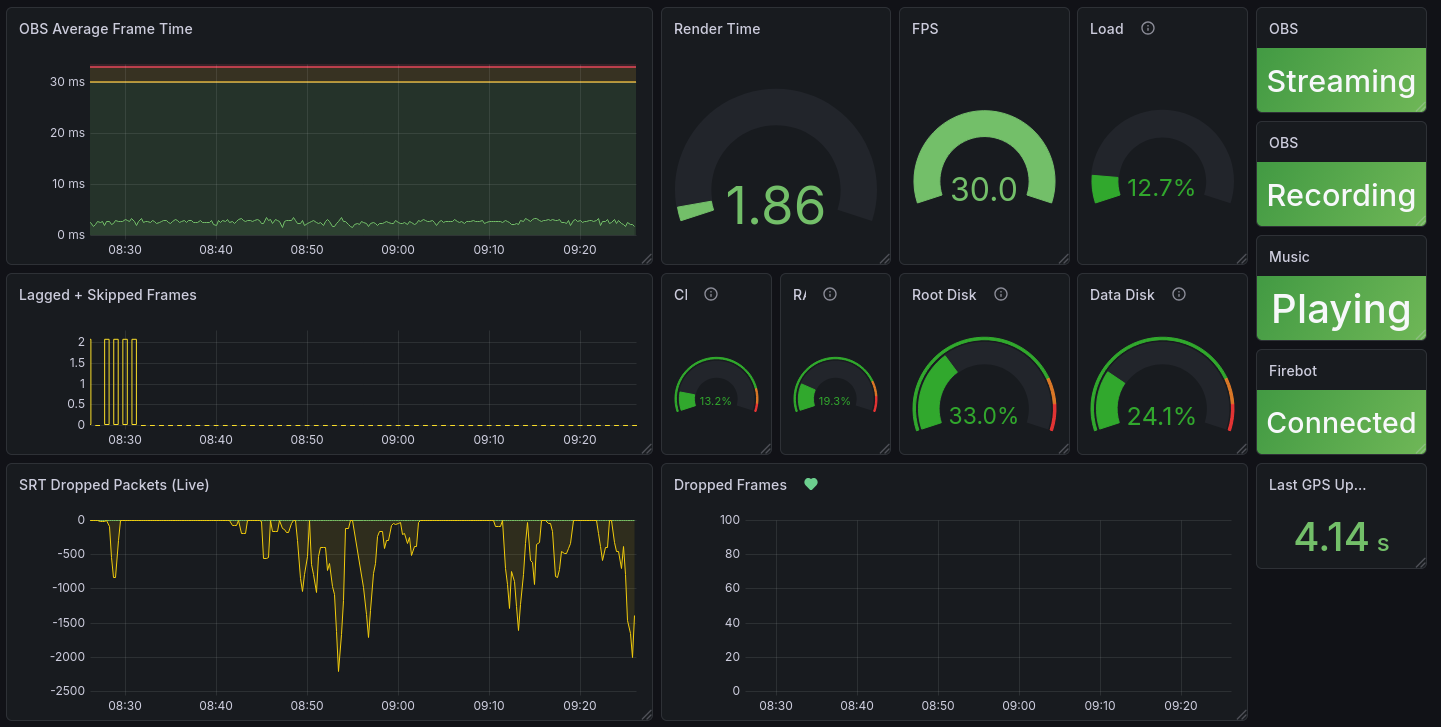
- obs_studio_exporter, a metrics exporter that exposed OBS internals so we could monitor the performance with external tools. That performance dashboard you saw just above was the primary consumer of the data.
Two of these plugins required a bit of additional effort to get running. The obs-gstreamer project did not provide prebuilt binaries for our platform, so Mage had to compile it from source. This meant setting up the GStreamer development libraries, the OBS development headers, and a build toolchain, not a trivial afternoon, but necessary for the SRT pipeline we needed.
The obs_studio_exporter plugin had not been updated for the latest version of OBS, and there were no pre-built binaries on its GitHub project page. Mage does not code in C++, which is what the plugin's OBS-facing layer is written in. However, the underlying metrics collection code was written in Go, a language Mage knows quite well. With some investigation, a willingness to poke at build scripts, and a healthy dose of assistance from his favorite AI coding agents, Mage got it compiling against our OBS version and added support for several additional metrics we wanted to collect. It was one of those moments where knowing the right language at the right layer of the stack makes all the difference.
Getting Video Into OBS: Media Source vs. VLC vs. GStreamer
The server-side OBS needed to ingest two main video feeds: the truck stream and a phone camera feed used for certain segments. OBS offers three main ways to bring in external video, and we tried all of them before settling on our final approach.
One important caveat: all of these evaluations were done while we were still running on the CPU-only cloud server. That environment was already struggling, and some of our negative experiences may have been symptoms of the underpowered host rather than inherent flaws in the source types themselves. We were also running an older version of MediaMTX at the time; a newer version with more consistent audio/video sync for SRT streams was released just days before the trip began. By then, our configuration was locked in and tested, so we stayed with what we knew. We may revisit these choices before the next trip.
OBS Media Source
The built-in Media Source is the simplest option. Point it at a network stream, and it will try to play it. For stable, high-quality sources, it works fine. For our use case, we noticed that the audio and video drifted out of sync whenever the SRT stream dropped or lagged, which was quite frequent when the truck hit low-coverage areas. After simulating an hour of an unstable SRT stream, the audio was nearly 5 seconds behind the video.
VLC Source
The VLC Source plugin uses libvlc under the hood, which gives it broader format support and somewhat better recovery behavior than the built-in Media Source. It handled dropouts better, but we still saw occasional audio/video desynchronization after extended periods of instability. There were also fewer integrations with websockets and Advanced Scene Switcher for this source type.
GStreamer: The Nuclear Option
Enter GStreamer, the open-source multimedia framework that can do basically anything if you are willing to write a pipeline string that looks like someone mashed a keyboard with their forehead. We used the obs-gstreamer plugin, which lets you feed raw GStreamer launch pipelines directly into OBS as a source.
GStreamer gave us the control we needed. We could tune SRT latency, add watchdog elements to force pipeline restarts when data stopped flowing, configure queue behavior, and manage buffer sizes, all things that were either impossible or opaque in the simpler sources. The trade-off was complexity. A GStreamer pipeline is a declarative program, not a configuration file. But for a 14-day stream where every minute of A/V sync mattered, the complexity was worth it.
Here is the actual truck ingest pipeline we ran (with some placeholder parameters, of course):
srtsrc uri="srt://our-server.our-domain.com:8890?streamid=read:truck:username:password&latency=400" !
decodebin name=bin
bin. ! queue ! watchdog timeout=4000 ! video.
bin. ! queue ! watchdog timeout=4000 ! audio.
The srtsrc element receives the SRT stream with a 400-millisecond latency buffer. A common guideline is to set SRT latency to several times the round-trip time to the source; in our case, ping ranged from 30 to 80 ms (and that jitter was another "feature" of the budget host we abandoned). So 400 ms was a conservative choice that tolerated jitter without adding excessive delay.
The decodebin auto-detects the video and audio codecs. After decoding, queue elements isolate the audio and video branches, and watchdog elements are the secret sauce: if no data arrives for 4 seconds, they post an ERROR to the bus, which triggers the obs-gstreamer plugin to restart the entire pipeline. That full restart is the cleanest way to recover A/V sync after a major dropout.
We also ran a similar pipeline for the phone camera feed, using a different SRT stream ID. Having both feeds in GStreamer meant we could apply the same resilience strategy to every video source in our stack.
The nice thing about this source was that when the signal dropped, the element rendered as completely transparent within OBS. That meant we could place the "hamster" image behind the GStreamer source without any special handling for dropped frames or black screens. The hamsters were always there, waiting patiently for failure.
Fitting the Feeds Together Like a Puzzle
4 Scenes
One of the more unusual aspects of the Path to Hope stream was that the final output was composed of two completely separate OBS instances running thousands of miles apart. The truck had its own OBS, responsible for mixing cabin cameras, road cameras, and local overlays. At other times, the streamers sent us their feed from an app on an iPhone. From time to time, they video-conferenced with leading morquio researchers or chatted with Freya as she played Minecraft (which we convinced her to pronounce as Meowncraft, like any other seven-year-old cat lover, she had named her viewers "The Kitties"). And finally, there was an AFK scene that showed a slideshow of Freya and her cats while the streamers were eating, resting, or sleeping.
All of this was mixed on Bygul, where the server-side OBS was running. That same system also handled music, alerts, maps, and the bottom information bar. Viewers saw a single cohesive scene, but under the hood it was a distributed system held together with caffeine and optimism.
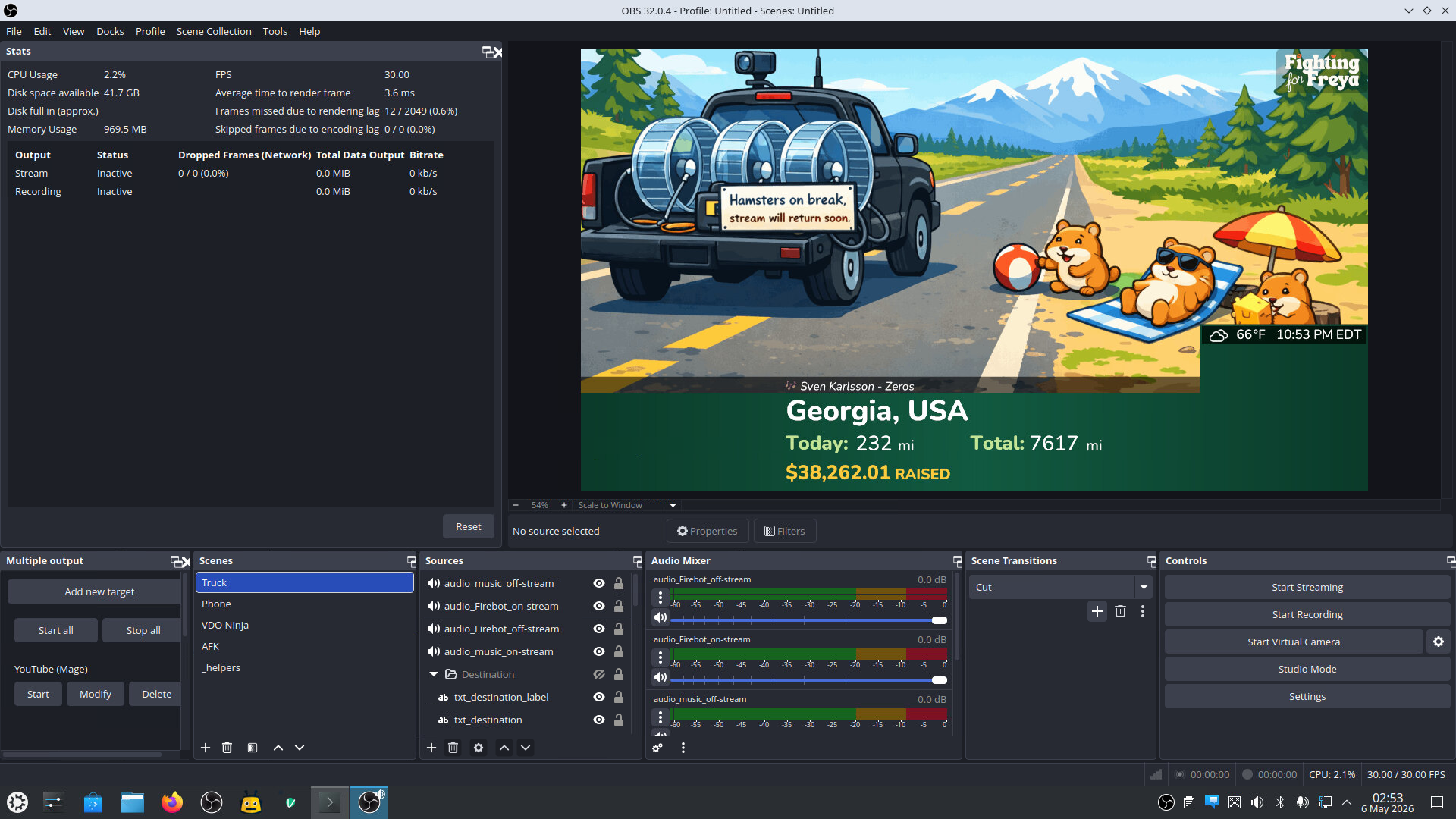
We dusted off Bygul one last time for this screenshot, which shows the Truck scene, with no truck feed (obviously) and the map disabled.
The Truck Scene
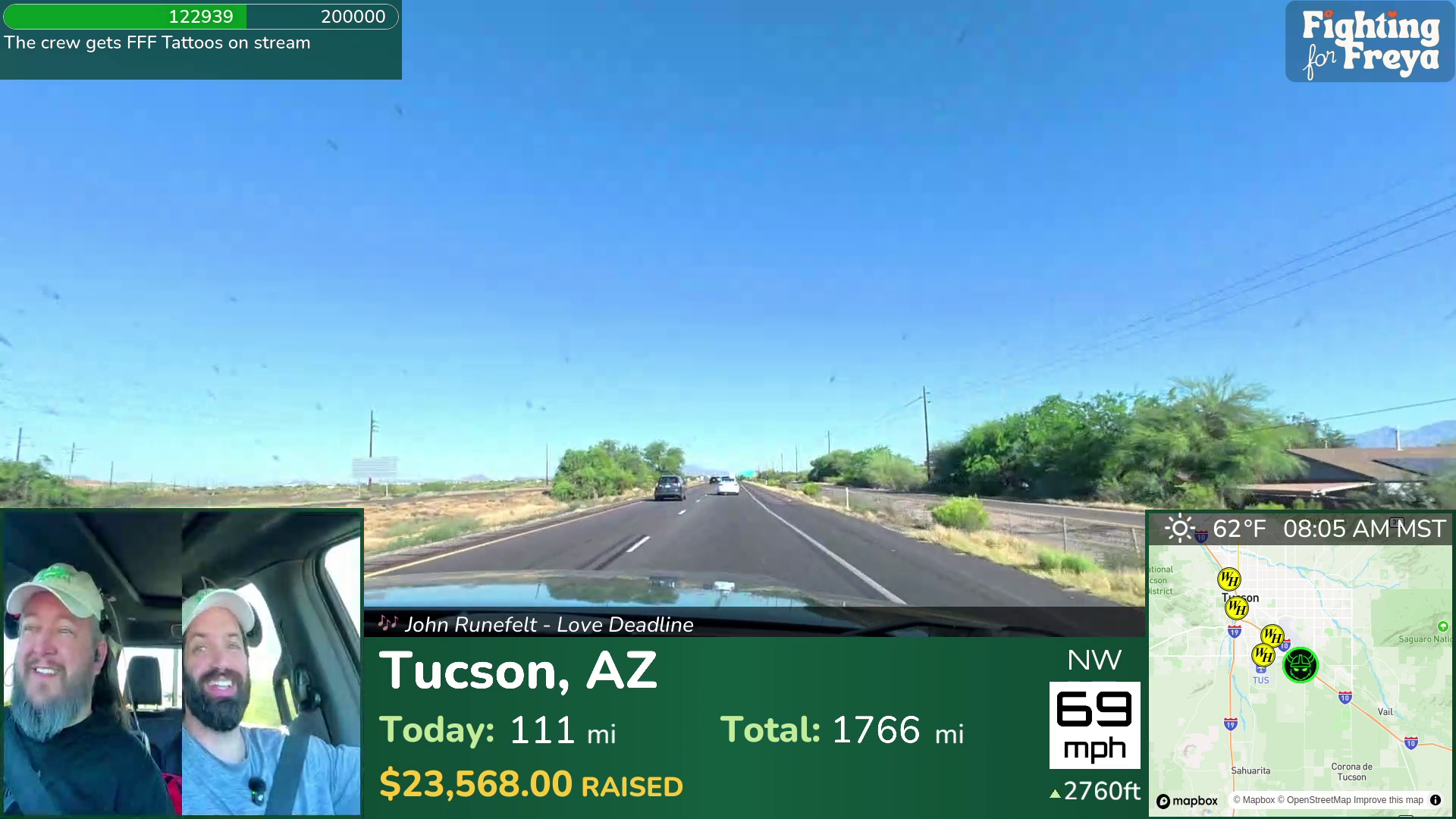
The truck OBS sent its video and audio feeds to us over SRT. Our server OBS ingested that feed via the GStreamer pipeline described above and positioned it within the Truck scene. Our OBS sources for this scene reveal the care that it took to get things just right (and this is only half of it):
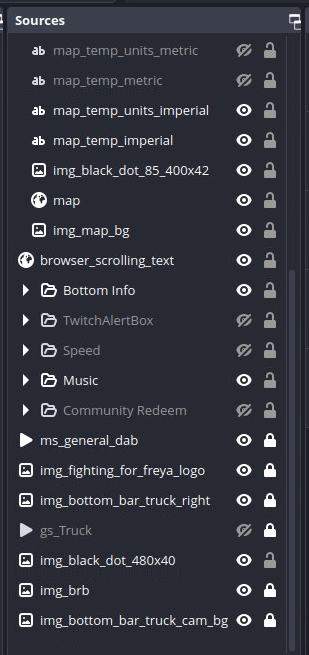
gs_Truck was the GStreamer feed from the truck's OBS that we previously documented. The only items below (i.e. behind) this source were the 480x40 black dot (extension of the music bar to the left side), the BRB (aka hamster) image, and the portion of the green bottom bar on the left side. There were several things above (i.e. in front of) the truck stream including:
- The map overlay, showing real-time location
- The bottom bar with distance, destination, speed, and amount raised
- The current song playing
- The Twitch alert box to recognize donors
- The "Community Redeem" showing progress toward a fundraising goal
- The "Fighting for Freya" logo in the upper right corner
The visual design was critical. Roamin Nomad's wife created graphics with exact pixel dimensions that matched the composition we designed. The truck's cabin camera overlay was positioned at specific coordinates so that it blended seamlessly with the server's bottom bar. You can see that there's no border around the camera in the server's OBS, but when the truck was connected, the truck included a border that exactly matched the appearance of the bottom bar. If you did not know what to look for, you would never guess that the cabin camera and the location text right next to it were generated by two different computers.
Getting this right required a lot of back-and-forth. We would adjust coordinates by single pixels, stare at the result for five minutes, and adjust again. At one point, we spent an entire evening debating whether a border should be 2 pixels or 3 pixels thick. The answer was 2 pixels. The debate was still worth having.
The Phone Scene
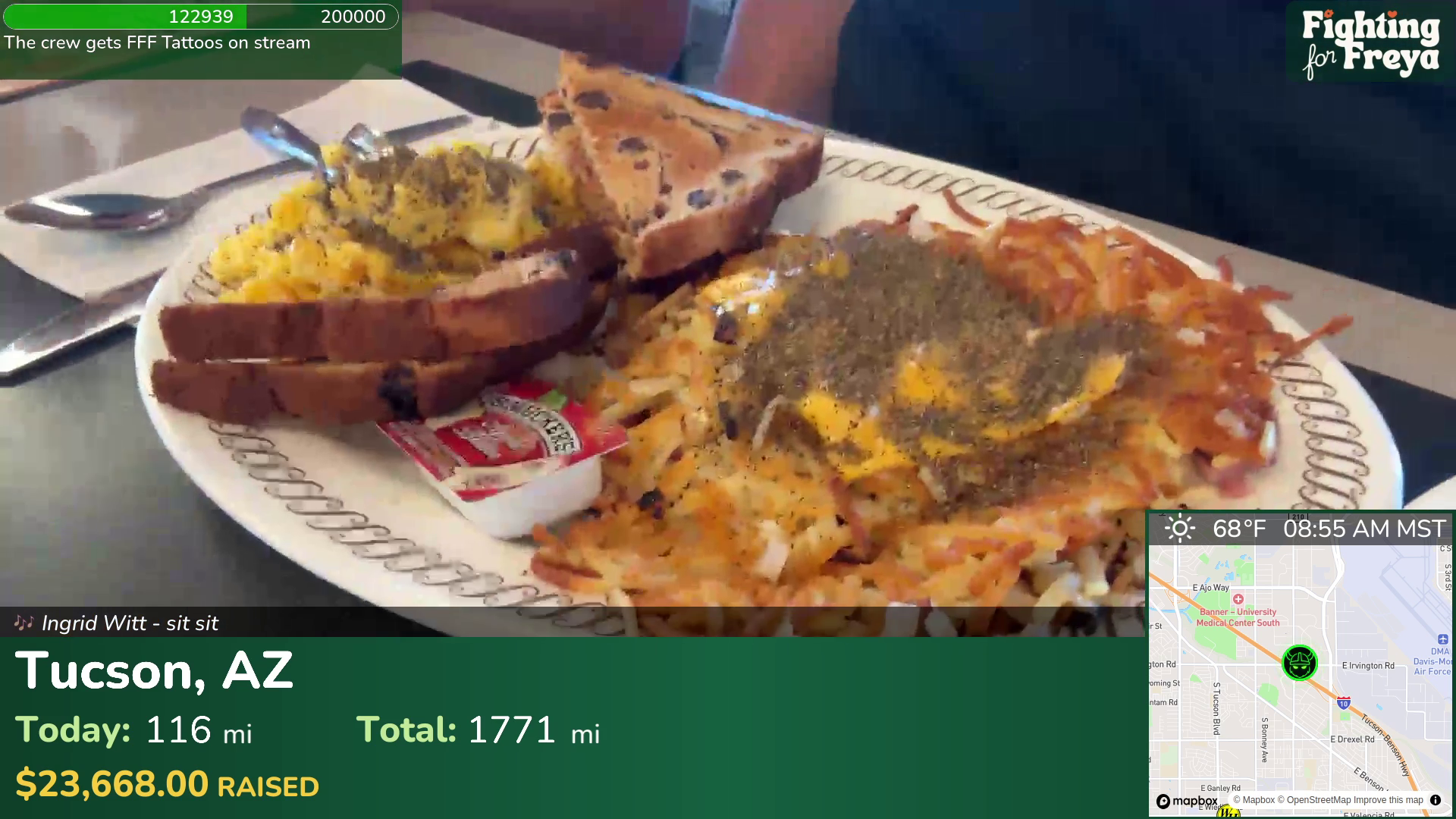
Not every memorable moment of the trip happened inside the truck. Sometimes the streamers wanted to stretch their legs, explore a city, or eat waffles without a steering wheel in the way. For that, we used Streamcast Pro, a free iOS app that turns an iPhone into a portable SRT streaming camera. Nordic Noob would fire up the app, and suddenly the OBS server was receiving a live feed from someone walking around Spokane or ordering hash browns at Waffle House.
The Phone Scene became an integral part of the experience. We used it for two live-streamed Waffle House breakfasts, smothered, covered, and broadcast in real time, a walking tour around Spokane, Nordic Noob's chest wax, the Fighting for Freya tattoos, an interview with morquio researcher Dr. White in a Denver park, and a live visit with Sheri, a morquio patient, in her home. It also provided an exploratory mission through the interior of a Buc-ee's (if you have never seen a Buc-ee's, imagine a gas station designed by someone who really, really likes brisket and beaver mascots). And who can forget the now-legendary moment in Montana where Nordic Noob convinced a bartender to comment on Roamin Nomad's checkerboard haircut? Chat loved it. Roamin Nomad less so.
The VDO Ninja Scene
VDO.Ninja is a fantastic open-source project that provides a web-based video conferencing system optimized for live streaming. It was the backbone of our interview segments, allowing us to bring in morquio researchers Dr. Fung and Dr. Harmatz, streamer Becky (WithTheGoodHair), and Freya playing Minecraft, all with high-quality video and audio. We set up a scene in OBS to display the VDO.Ninja browser source alongside a scaled-down truck feed. On this scene, we intentionally did not include the music sources or song artist/title display.
This setup was relatively simple, thanks to the excellent work and documentation of the project's author, Steve. We created a "Room" and assigned it a password and shared the URL with our guests. We added the output display as a browser source to OBS and operated the "Director" view in a separate window to arrange the guests on the screen. Even when the truck was in a low signal area, guests still stayed connected because all of the connectivity was to the server, not through the truck.
At times during the VDO.Ninja sessions, there were three OBS sessions generating the on-screen content: the feed from the truck, the feed from the guest streamer, and the OBS instance on the server that was assembling it all.
There were a few periods where purists may have noticed a bit of lag, mainly when Freya was playing Minecraft and rapidly moved around. In retrospect, we think it would have been better to feed that OBS stream into an RTMP ingest instead of using the OBS "virtual camera" and then capturing that with a web browser. Fortunately, additional ingests are very easy to do with mediamtx, which we praised extensively in our previous post.
The AFK Scene
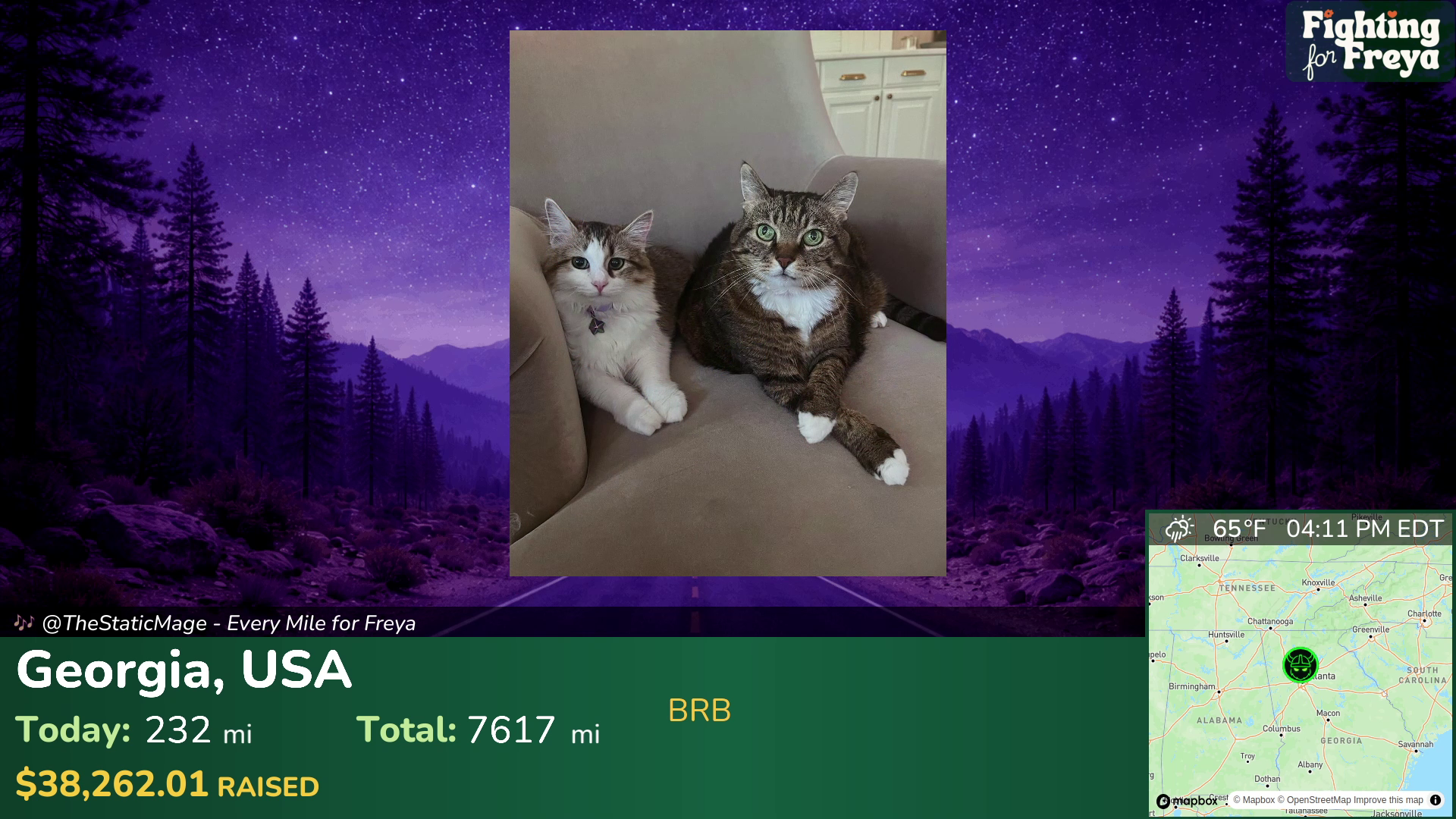
When the streamers were taking a break, we wanted to show something more engaging than a blank screen. The AFK scene was a slideshow of photos of Freya and her cats, accompanied by lo-fi instrumental music at night.
Prior to the stream, we set up credentials for Roamin Nomad to upload pictures to the server via SFTP, recommending the free FileZilla client. OBS has a built-in slideshow plugin that can be pointed at a directory containing images. We also set things up so that once per hour, a slideshow of 8 "thank you" images displayed to acknowledge those who were directly involved with launching or producing the stream.
We also provided a way for the streamers to set a timer and leave a message on the AFK scene. We'll cover that in Part 3.
Next Up: Part 2
In Part 2, we will take a tour of the audio setup to meet the unique needs of this stream. If you enjoy latency estimations, offset calculations, and audio streams bounced between several servers in the country, you're in for a treat.